
I almost lost 20 years of Outlook and 500 Xbox games to MFA — a passkey saved me
A real 2024 lockout: France trip for my partner’s scholarship, dead recovery phone, and how a casual passkey on her cheap laptop — not my ThinkPad — restored Outlook and Xbox.
By the QSTools team — first-person note from one of our contributors. The failure mode is common; the save was very personal.
My primary Outlook address (Hotmail when it started) has followed me since roughly 2001, when I was eight and the family PC still dialed into the internet. That inbox watched the golden years of MSN Messenger (later Windows Live Messenger), early job invoices, university, social logins, AI tools, and an Xbox library of 500+ games bought since the Xbox 360 era.
In 2024 we went to France: she on a scholarship, me mostly as partner-in-crime — accompanying her, chasing the adventure (Working Holiday / paperwork on my side). A strict MFA challenge almost wiped my digital identity at the worst possible time.
Aside (dates): MSN / Windows Live Messenger peaked ~1999–2013 and shut down outside China around April 2013 (China until October 2014). The Microsoft account lived on. Harder consumer MFA/recovery and platform passkeys belong to a later era (~2018 FIDO2; broader consumer passkeys ~2022–2024). Nostalgia ≠ today’s recovery policy — and this story deliberately spans both.
The lockout: password OK, recovery dead
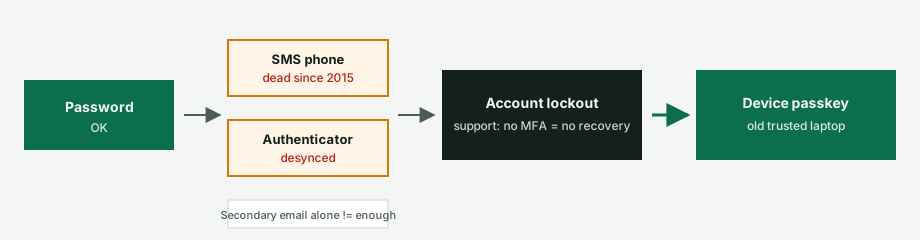
I knew the password. Microsoft still demanded a second factor. Legacy config made a perfect storm:
- Microsoft Authenticator desynced on my current phone.
- Recovery phone still pointed to a number abandoned in 2015.
- Recovery email (secondary Gmail) accepted a code, but the flow required another method. The correct password did not count as that method.
Automated recovery and support posture were blunt: no access to registered MFA / phone ⇒ account treated as unrecoverable.
Sessions died everywhere except the Outlook mobile app. I could read mail, not change security settings. I treated that phone like a vault key.
IT irony: my daily-driver ThinkPad — the “powerful” machine — had no passkey registered for that account. The desktop I left in Argentina didn’t either: no passkey, no solid TOTP setup there. The hygiene I preached was not mirrored on my own primary devices.
Assuming the Gamertag and game library were gone, I stood up a new Gmail hub with printed codes, multiple phones, passkeys, and a synced authenticator — then boarded the flight to France.
The miracle: my partner’s $50 laptop
Weeks later in France, my partner asked me to check her laptop so she could prep lessons (her scholarship / studies were the trip’s center of gravity; I was along for the ride). It was a very low-end machine: Intel Atom, 2 GB of RAM, a sluggish Windows 10 install. I was about to back up her files before trying a lightweight Linux distro or a thinner Windows image.
I opened Microsoft Edge… and there, almost forgotten, was a saved profile with my name.
Without high expectations I switched profiles and tried to sign in:
- Password — OK
- Secondary Gmail code — OK
- Second factor — “I don’t have the phone / Authenticator”
- Option appeared: Use security key or passkey
Windows recognized a local FIDO2 / passkey on her machine. I had not set that up as a disaster-recovery plan: at some point I must have casually signed in there and the OS stored the credential. I confirmed, and within seconds the Microsoft account synchronized fully.
I rotated phones, resynced Authenticator, printed emergency codes, and kept the Xbox catalog — from a cheap laptop that did have a passkey, while my ThinkPad and Argentina desktop did not.
Device-bound vs synced passkeys (important nuance)
| Passkey type | Where it lives | Helps in a lockout like mine? |
|---|---|---|
| Device-bound (that laptop) | That hardware / OS profile | Yes — if you still have the machine |
| Synced (iCloud / Google / password manager) | Cloud vault across devices | Yes across your ecosystem |
| Roaming security key (YubiKey, etc.) | Hardware key you carry | Yes if the key is with you |
The miracle was not “passkeys always sync.” It was a credential forgotten on her machine, created with no plan, while my “serious” devices had no such lifeline.
Why traditional recovery fails over decades
| Method | Security | Convenience | Lockout risk | Phishing resistance |
|---|---|---|---|---|
| Password + SMS | Low | High | High (number changes) | Poor (SIM swap / phishing) |
| TOTP authenticator | Medium–high | Medium | Medium (phone loss / desync) | Medium |
| Printed backup codes | High | Low | Low if stored well | High |
| Passkeys / FIDO2 | Excellent | High | Low if you have redundant devices or sync | Excellent |
SMS and “I’ll update the number later” do not survive a 10-year gap. That is the real story — not a weak password.
Checklist: survive your next MFA challenge
Call it a 3-2-1 identity backup in spirit: 3 ways in, 2 places (digital + physical), 1 offline pack.
- Audit recovery yearly — phones, recovery emails, authenticator installs.
- Prefer passkeys, and register them on more than one device (or a password manager that syncs them).
- Print backup codes and store them with important papers.
- Use an authenticator that can export / cloud-backup secrets (encrypted).
- Keep at least two trusted devices signed in or registered — do not assume “only mine” is enough.
If you generate passwords for new accounts, do it locally — our Password Generator never uploads what you create. Pair that with passkeys and printed codes; do not rely on SMS alone.
Takeaway
A Microsoft account can outlive MSN, jobs, countries, and phone numbers. Recovery policies will not be sentimental. Redundant MFA beats a perfect password. And sometimes the passkey that saves you is not on your ThinkPad — it is on your partner’s cheap laptop, because one day you casually signed in there.